Use a marked screenshot to identify the target, a sentence to express intent, and a running-app check to prove the change.
Related working material
- Images as precise task evidence — prompts and exercises
- Images as precise task evidence — questions and tradeoffs
- Images as precise task evidence — worked example
TL;DR
- A capture→annotate→drop workflow: CleanShot hotkey, one fat red arrow, drag the image straight into the agent prompt.
- You walk away with five copy-paste prompt shapes — including the two real prompts where a screenshot plus one sentence drove a bug fix all the way to a pull request.
- The one move: when a prompt sentence starts describing a screen location ("the row near the bottom…"), stop typing and hit the capture hotkey instead.
Have your agent adopt this — paste this into it:
Fetch https://amber-willow-n64j.here.now/agent.md?raw and follow it to set up the screenshot-reading protocol in my current project. Run the success check at the end and show me the result.
Why one arrow beats a paragraph
Say your app's launcher sometimes moves focus to the wrong row while you type. Describe that in words alone — "when I type in the menu, the selection sometimes jumps down to another item" — and the agent must guess: which menu? which item? at what moment? A real session skipped the guessing: the entire bug report was the annotated screenshot in card 1 plus one sentence, and the session chained investigation, an external model consult, the fix, live verification in the running app, a commit, and a pull request.
The division of labor is simple. The arrow answers "which element?" The sentence answers "what do you want done?" Neither carries the other's job well: an arrow cannot express intent; a sentence cannot point. CleanShot's text tool collapses the two when that helps — card 3's capture carries the full design feedback as a red callout typed on the image, so the prompt shrinks to "do what the annotation says."
Weak version of the move: three arrows, two boxes, and a highlight on one screenshot — the agent now has five candidate subjects. Strong version: one fat arrow per idea. Two ideas, two screenshots. Crop tight.
How agents ingest the drop
Different CLIs render a dropped image differently, but all of them get the pixels. Claude Code shows an inline [Image #1] marker. The Codex CLI rewrites a dragged file into a header:
# Files mentioned by the user:
## capture.png:
$HOME/screenshots/capture.png
The difference only matters when you script prompts; drag-and-drop hides it. And the image is data, not decoration — one session opened with just a file path plus "It is a 1612×1084 RGBA PNG. The visible symptom is…" and the agent read the actual pixels.
What good captures look like
Across a reviewed week of ~45 captures, the annotated ones share one pattern: a single fat red arrow aimed at the one element the prompt is about — an input field, a status widget, an answer sentence. Almost never boxes or long callouts.
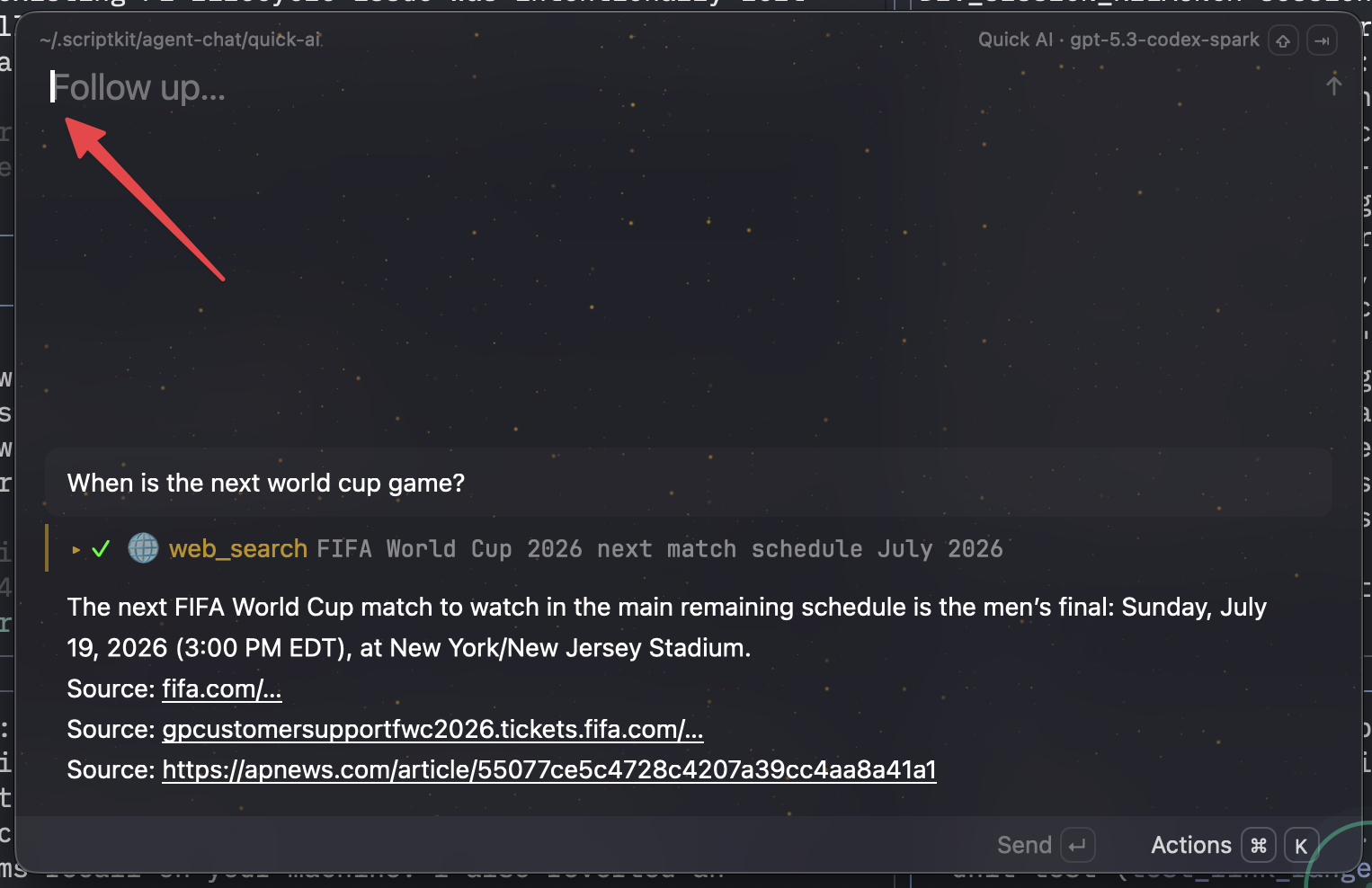
The arrow singles out the follow-up input the prompt discussed, ignoring everything else on screen.
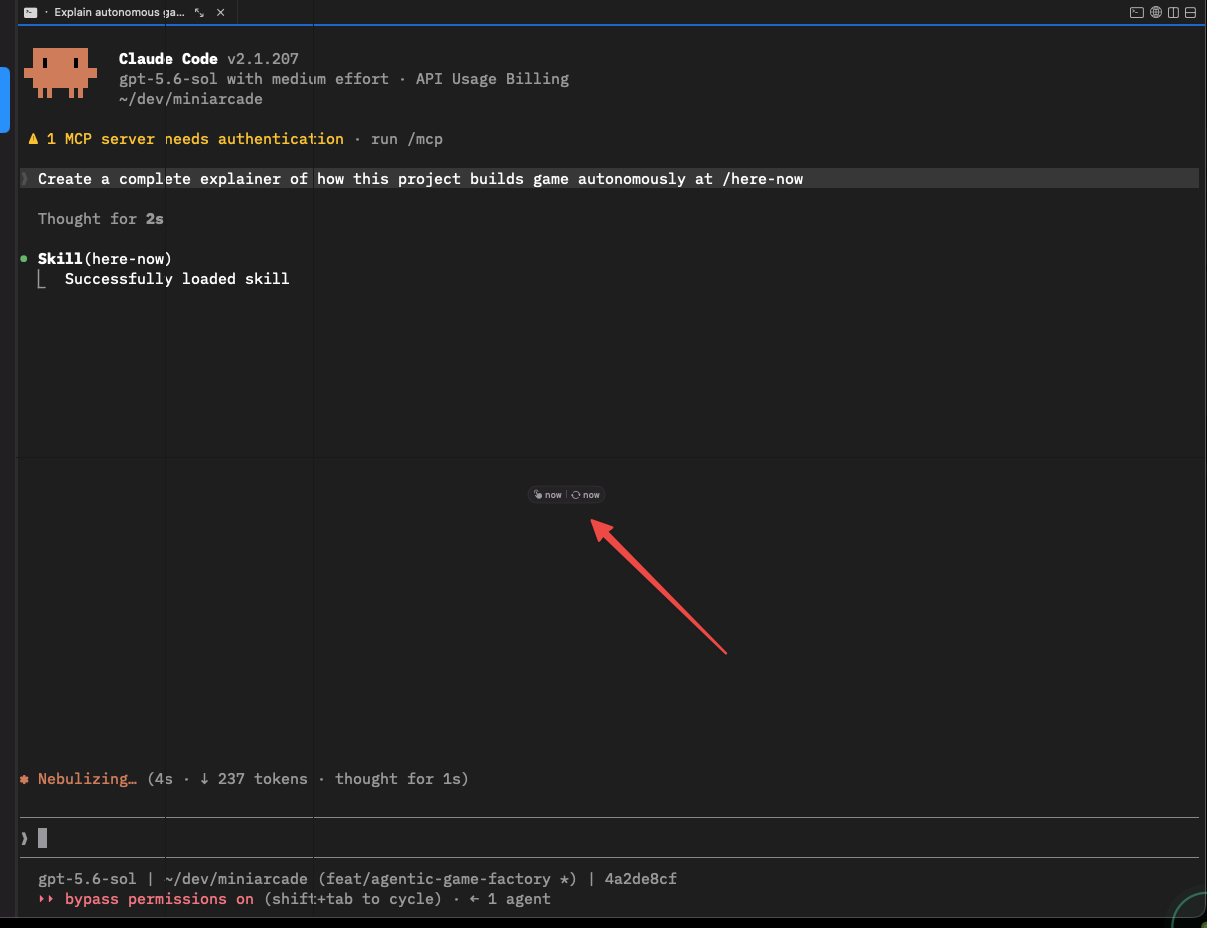
Applied to the agent's own UI: the arrow isolates two tiny status pills inside a busy terminal session.
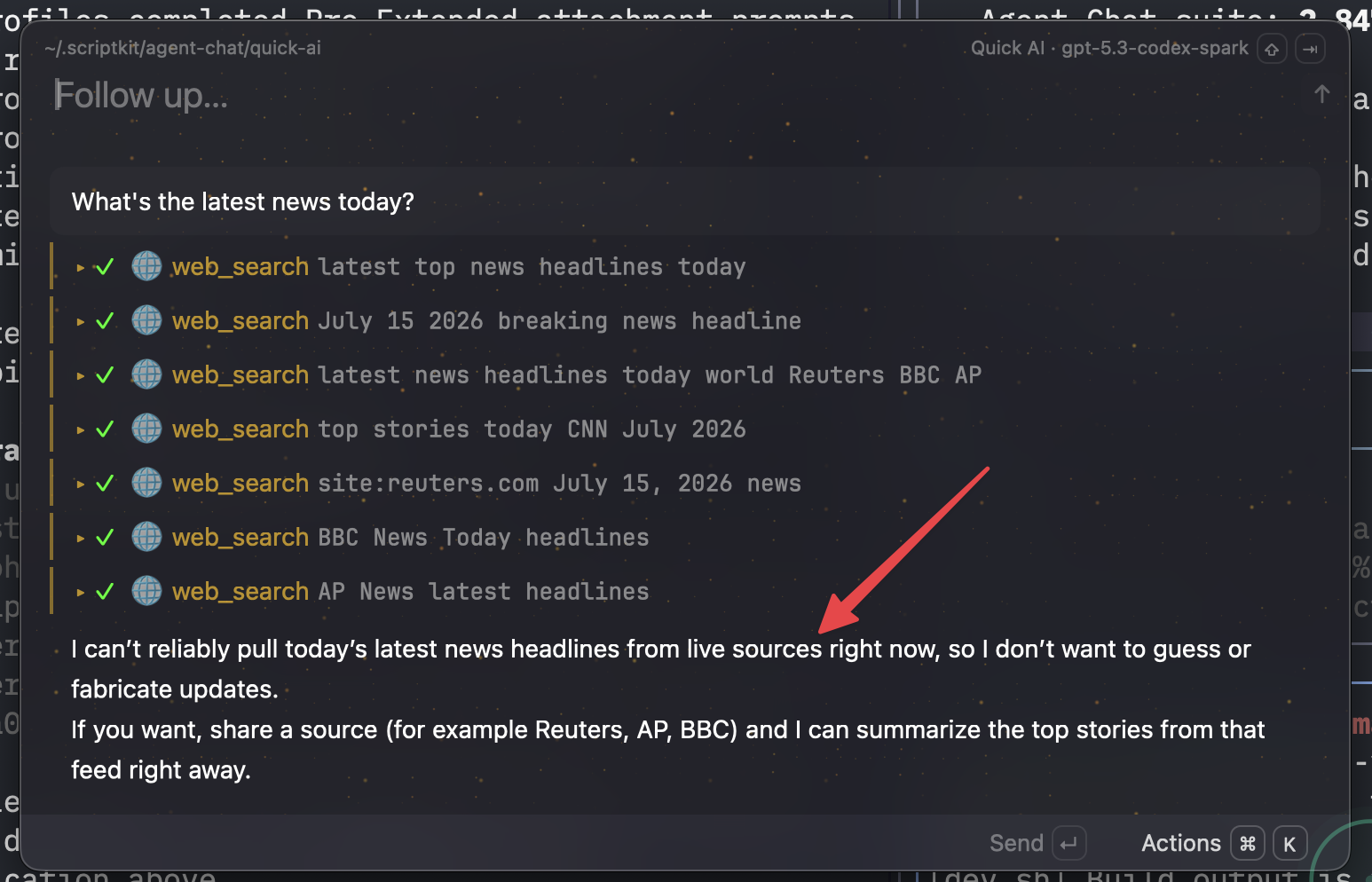
Feedback aimed at agent behavior itself: the arrow marks the answer sentence under discussion, so the follow-up prompt can be one line.
Judge success by the agent's first reply: it should name your arrow's target unprompted. If it misidentifies the target, don't add prose — crop tighter, keep one arrow, resend. Capture the failure state, not the app in general.
Check what leaves your machine
Screenshots leak. The same week of captures that produced the five images on this page also contained personal message threads, a contact list with real names, a member directory, and personal photos — the same hotkey captured them all, and all of them were excluded here. An agent prompt is already a disclosure: everything visible in the frame — window titles, file paths, browser tabs, notification banners — goes to whatever service runs the model. Review the whole frame before you press send, and again, more strictly, before anything gets published. If a capture shows another person's data, re-take it rather than blurring it.
Appendix
Limits & caveats
- The two real sessions are single successful runs, not controlled comparisons. No prose-only version of the same bug report was tried, so "the arrow made the difference" is a reasoned inference from the prompt's brevity, not a measurement.
- The "first reply names the arrow's target" success test is an editorial rule of thumb, not something the sources measured.
- The real prompts in cards 1–2 invoke the author's local slash commands (
/goal,/oracle-packx,/web-choices) and card 5 uses a local$image_gencommand — you won't have these. The portable versions remove them; that light generalization is the only edit. - The quick start and helper script assume macOS (CleanShot,
pbcopy) and a capture folder at~/screenshots; setCLEANSHOT_DIRif CleanShot exports elsewhere. - Evidence is one developer's capture folder and session history over one week . It shows the workflow working; it does not measure it against alternatives.
- Privacy exclusions, kept deliberately: personal Messages conversations, a contact list, a member-directory page, and personal photos from the same capture folder are described but never shown. Session ids and home paths are redacted in text; the five published images show only public app UIs and
~/dev-style paths. - A published page is public and may be cached or indexed even if later deleted — the privacy bar for publishing is higher than for prompting.
Operating practice
Point at the visual problem
What to notice
Replace vague design prose with an annotated image, a bounded target, and a visible success condition.
Try this
Mark the smallest visual defect, name what must remain unchanged, and ask for one observable correction.
“Screenshot, draw an arrow, or multiple arrows, and then paste.”
John Lindquist · 02:18:19
Concept
Images carry layout evidence that text often loses. Keep the request narrow: target, constraint, expected result, and one check at the viewport where the problem appears.
Reflection
An image can show a symptom without proving its cause. Ask the agent to inspect the implementation before choosing a fix.
Recording evidence: listen at 02:15:42.
“Please, after you're done generating the HTML, take a screenshot of the page and compare the two, so you get a diff.”
John Lindquist · 02:21:37