Detailed questions and tradeoffs with concrete prompts, observable outcomes, and the limits of the example.
The room asks
Can't I just describe the bug in words?
You can — and the agent starts guessing. "When I type in the menu, the selection sometimes jumps to another item": which menu? which item? at what moment? In a real session I skipped all of that. The entire bug report was one annotated screenshot plus one sentence, and the session ran investigation, fix, live verification, commit, and a pull request in a single conversation. Verbatim:
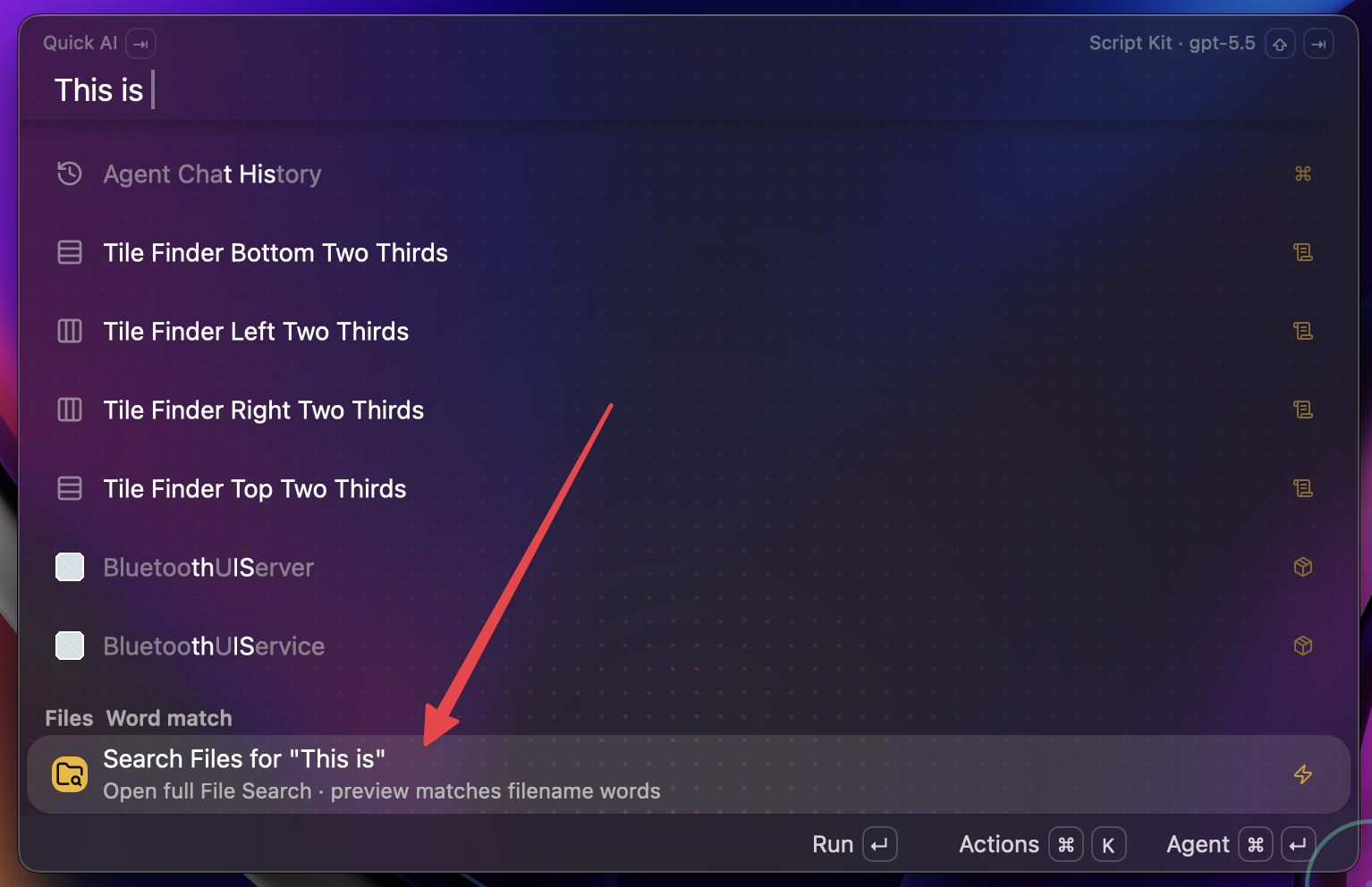
The screenshot that was the bug report.
/goal [Image #1] --- ensure that as you're typing in the main menu input, that
the first item in the list always stays focused. Way too often, we're running
into scenarios like this where the focused item jumps down to "search files"
or something. /oracle-packx then implement
The slash commands are my local ones; a portable version without them is on the section guide. The arrow answers "which element", the sentence answers "what do you want done". Neither does the other's job well.
What does the agent actually see when I drag an image in?
The pixels. The chrome differs per CLI — Claude Code and pi show an inline [Image #1] marker, while the Codex CLI rewrites the drag into a file header:
# Files mentioned by the user:
## capture.png:
~/screenshots/capture.png
Either way the model reads the image as data: exact strings, counts, layout. One session opened with just a file path plus "It is a 1612×1084 RGBA PNG. The visible symptom is…" — and the agent read the actual pixels before proposing a fix.
My arrow could plausibly point at three things. Won't the agent guess wrong?
That's why the habit is one fat arrow per idea, cropped tight. Two ideas, two screenshots. And judge success by the agent's first reply: it should name your arrow's target unprompted — if it misidentifies, don't add prose, crop tighter and resend. You can also make the reading side explicit. This is the protocol file I have agents install; rule 4 covers exactly your worry:
# Screenshot protocol

When the user drops a screenshot into the prompt, do this before anything else:

1. Read the whole frame, not just the center. Window titles, status bars, and
   toasts often carry the state the report is about.
2. Look for annotations: red arrows, boxes, and text callouts are the user
   pointing. The arrow's target element is the subject of the prompt.
3. Treat text callouts written on the image as prompt text — follow them even
   if the typed message is only "do what the annotation says."
4. In your first reply, name the exact element the arrow points at. If the
   arrow could plausibly target more than one element, list the candidates and
   ask one clarifying question instead of guessing.
5. Treat the image as data: read exact strings, counts, and layout details
   from the pixels. Do not invent UI that is not visible.
6. One arrow = one idea. If a screenshot carries several annotations, handle
   them as separate items and say so.
7. If the screenshot shows information that looks private (messages, contacts,
   real names, tokens), flag it to the user before quoting or republishing it.
Your agent can set this up itself from agent.md.
Do I have to type the instruction at all, or can the image carry it?
CleanShot's text tool collapses the two. Type the feedback directly on the capture — then the annotation IS the prompt:
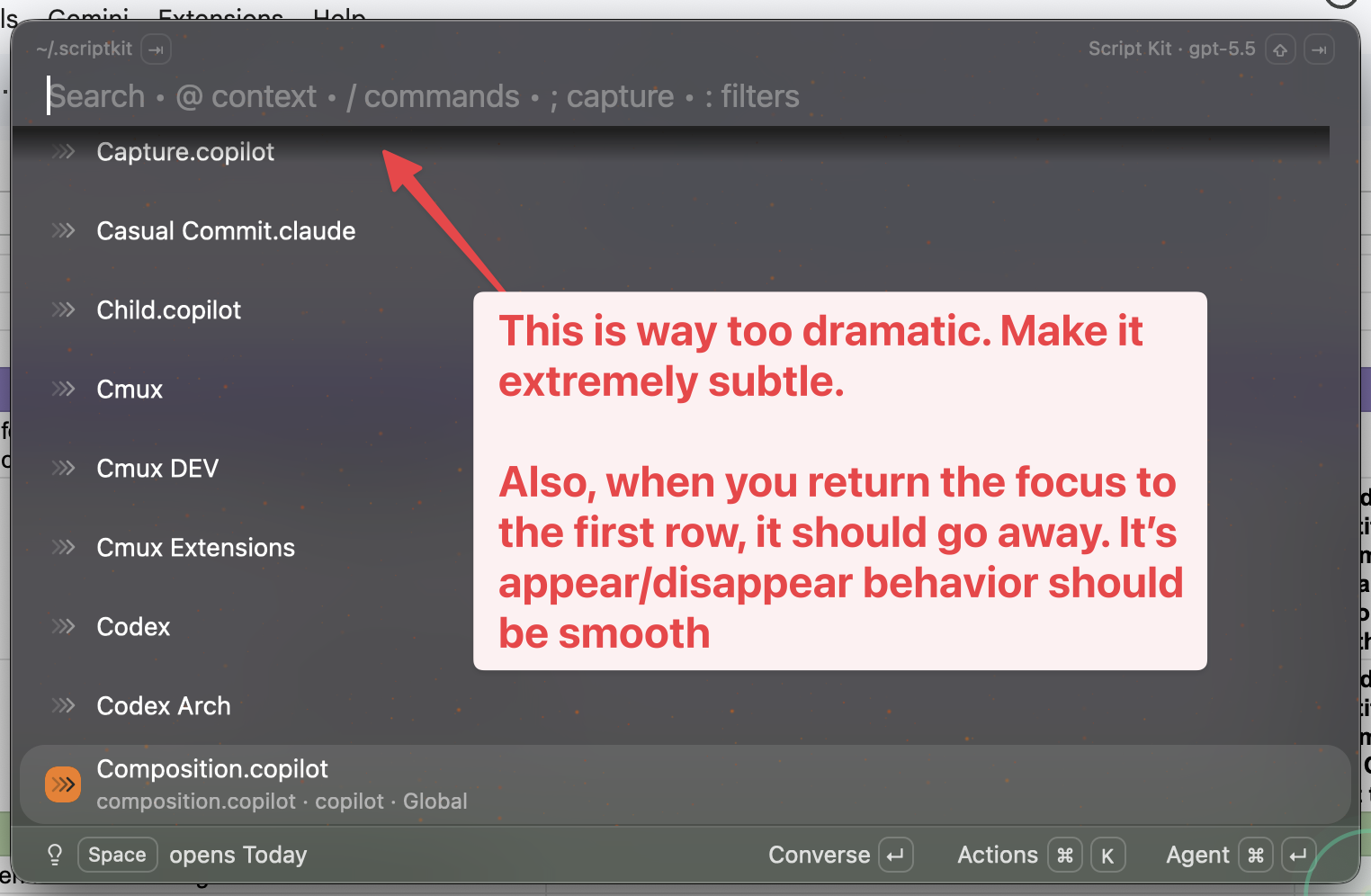
The callout carries the full design feedback; the arrow marks the element.
[Image #1] Do what the annotation says.
Fine for bugs. Does it work for design work too?
A real design pass started with a baseline screenshot of a workspace sidebar and this — the picture was the spec:
[Image #1] Ask /oracle-packx for some suggestions on how we can make the
workspace sidebar much more "at a glance" useful then create a /web-choices
from its suggestions and implement my choices once they're ready
No paragraph described the sidebar. The session produced five design directions, rendered them as a visual picker, and implemented my picks. Portable version on the section guide.
Drag-and-drop is a pain on a projector or over SSH. What then?
Paste the newest capture's file path instead — agents with filesystem access read the file:
dir="${CLEANSHOT_DIR:-$HOME/screenshots}"
ls -t "$dir" | head -3
printf '%s' "$dir/$(ls -t "$dir" | head -1)" | pbcopy
echo "newest capture path copied — paste it into your agent prompt"
Aren't you screenshotting private stuff straight into a model?
Yes — that's the sharp edge. The same week of captures that produced the images on this site also caught personal message threads, a contact list with real names, a member directory, and personal photos. The same hotkey captured them all; all of them were excluded here. An agent prompt is already a disclosure: everything visible in the frame — window titles, file paths, browser tabs, notifications — goes to whatever service runs the model. Review the whole frame before you press send, and hold a stricter bar again before anything gets published. If a capture shows another person's data, re-take it rather than blurring it.
You said this same pipeline does something sillier. What's the generative twist?
The same capture can seed image generation — one real prompt fed a screenshot to an image-gen command and asked for a portrait:
$image_gen /path/to/CleanShot ....png --- painting of yourself as the Duke of
Islington
$image_gen is a local command — the shape is what matters: capture in, generated image out. That pipeline is the on-ramp to the Variations section of this workshop, where one prompt fans out into nine image mockups.
Keep going
Watch the beats end-to-end on the Session Replay, or lift all five prompt shapes and the setup steps from the section guide.