Complete reusable prompts, setup recipes, success checks, and caveats for images as precise task evidence.
Quick start
Capture with the CleanShot hotkey, draw ONE red arrow at the element in question, drag from the annotate overlay into your agent, and type one sentence of intent. If drag-and-drop is awkward (projector, SSH), paste the newest capture's file path instead:
dir="${CLEANSHOT_DIR:-$HOME/screenshots}"
ls -t "$dir" | head -3
printf '%s' "$dir/$(ls -t "$dir" | head -1)" | pbcopy
echo "newest capture path copied — paste it into your agent prompt"
Prompt library
The first two cards are real prompts, verbatim from session history — each was the entire prompt. The rest are the reusable shapes they generalize to.
1 · The real bug report — screenshot + one sentence → pull request
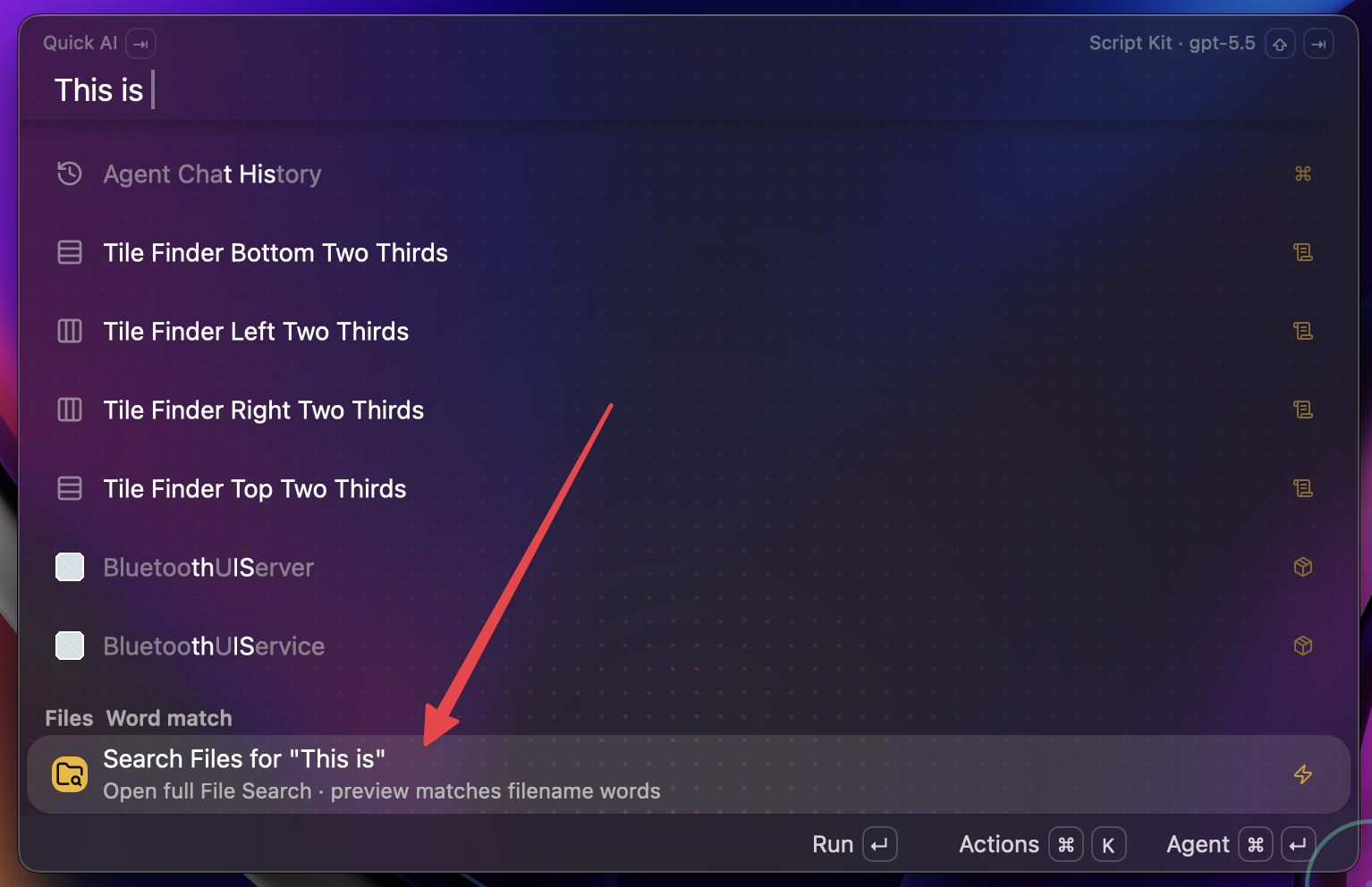
The screenshot that was the bug report. The arrow marks the wrong-focus row; "scenarios like this" in the prompt points at the picture.
- Agent: Claude Code (author's /goal, /oracle-packx commands)
- Working directory: the Script Kit GPUI app repo
- Expected result: investigate → fix → live verify → commit → PR, one conversation
/goal [Image #1] --- ensure that as you're typing in the main menu input, that
the first item in the list always stays focused. Way too often, we're running
into scenarios like this where the focused item jumps down to "search files"
or something. /oracle-packx then implement
Portable version (author-local slash commands removed):
[Image #1] --- ensure that as you're typing in the main menu input, the first
item in the list always stays focused. Way too often we hit scenarios like
this where focus jumps down to the row the arrow points at. Investigate,
implement, verify in the running app.
2 · The real design brief — the picture is the spec
- Agent: Claude Code (author's /oracle-packx, /web-choices commands)
- Working directory: the cmux app repo
- Expected result: 3–5 design directions → visual picker → your pick implemented
[Image #1] Ask /oracle-packx for some suggestions on how we can make the
workspace sidebar much more "at a glance" useful then create a /web-choices
from its suggestions and implement my choices once they're ready
No paragraph described the sidebar — the baseline screenshot carried the whole spec.
Portable version:
[Image #1] Suggest ways to make this sidebar much more "at a glance" useful,
show me 3-5 directions as a visual comparison, then implement my pick.
3 · Callout-as-prompt — type the instruction on the image
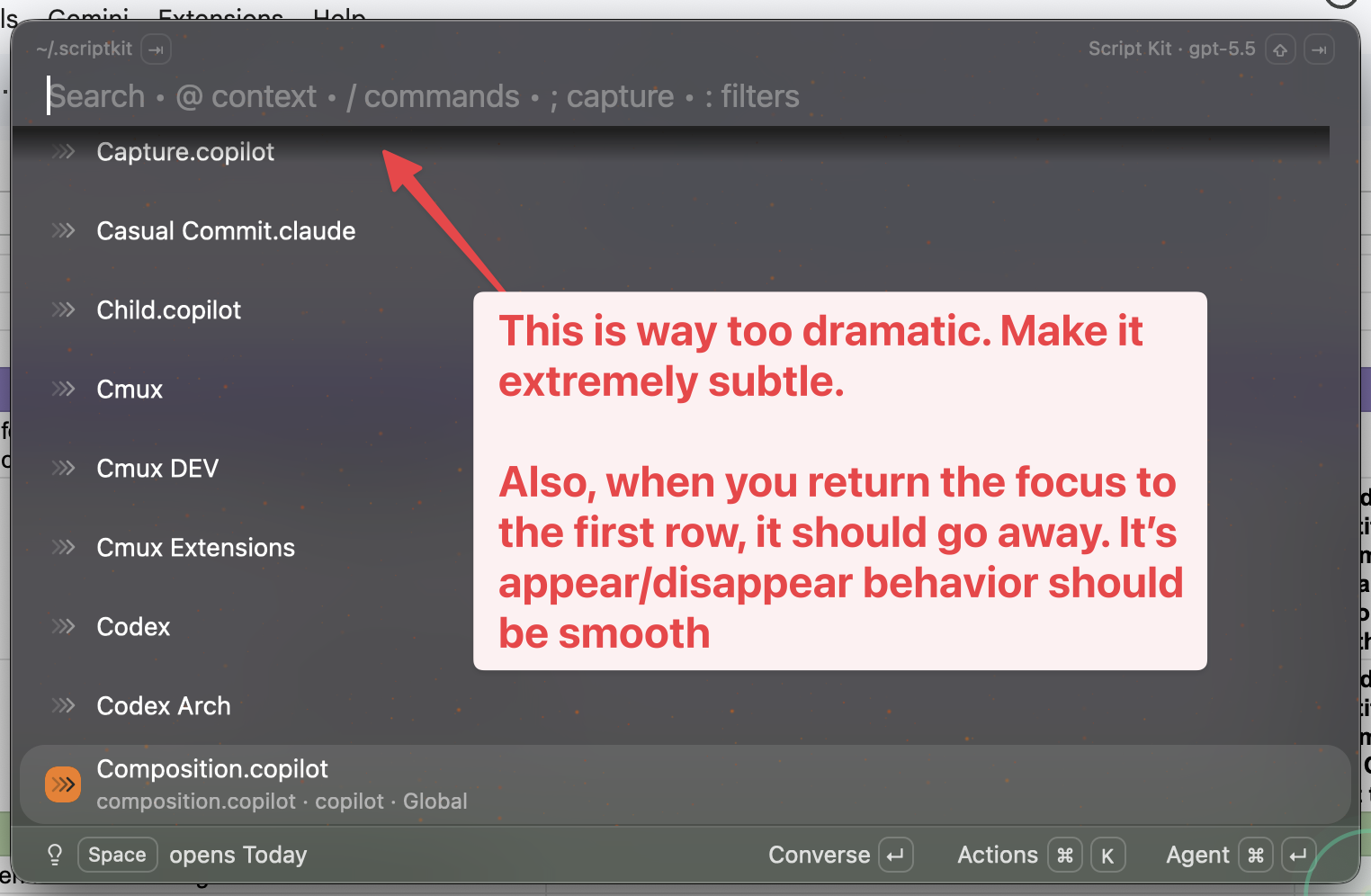
The annotation IS the prompt: the arrow marks the element, the callout text is the instruction.
- Agent: any image-capable agent
- Working directory: the app's repo
- Expected result: agent quotes the callout back and applies it to the arrowed element
[Image #1] Do what the annotation says.
4 · Pixel evidence — give measured facts with the image
- Agent: any agent that can read local files
- Working directory: anywhere the capture path resolves
- Expected result: agent opens the file and reports what it sees at the arrow before proposing a fix
/path/to/CleanShot ....png
It is a 1612x1084 RGBA PNG. The visible symptom is the 2px gap the arrow
points at. Read the pixels before proposing a fix.
5 · Image-gen seed — same pipeline, generative twist
- Agent: any agent with an image-generation command
- Working directory: anywhere
- Expected result: a generated image seeded by the capture
$image_gen /path/to/CleanShot ....png --- painting of yourself as the Duke of
Islington
Set it up (agent guide)
-
Create
screenshot-protocol.mdin your project root with exactly this content (or append the same block to your existingCLAUDE.md/AGENTS.md):# Screenshot protocol When the user drops a screenshot into the prompt, do this before anything else: 1. Read the whole frame, not just the center. Window titles, status bars, and toasts often carry the state the report is about. 2. Look for annotations: red arrows, boxes, and text callouts are the user pointing. The arrow's target element is the subject of the prompt. 3. Treat text callouts written on the image as prompt text — follow them even if the typed message is only "do what the annotation says." 4. In your first reply, name the exact element the arrow points at. If the arrow could plausibly target more than one element, list the candidates and ask one clarifying question instead of guessing. 5. Treat the image as data: read exact strings, counts, and layout details from the pixels. Do not invent UI that is not visible. 6. One arrow = one idea. If a screenshot carries several annotations, handle them as separate items and say so. 7. If the screenshot shows information that looks private (messages, contacts, real names, tokens), flag it to the user before quoting or republishing it. -
Optional macOS helper — create
scripts/latest-shot.shso the newest capture's path is one command away:#!/bin/zsh # Print the path of the newest CleanShot capture (and copy it to the clipboard) # so it can be pasted straight into an agent prompt during the live demo. # usage: ./latest-shot.sh [n] # n = how many recent shots to list (default 1) set -eu dir="${CLEANSHOT_DIR:-$HOME/screenshots}" n="${1:-1}" shots=("${(@f)$(/bin/ls -t "$dir")}") for f in "${(@)shots[1,$n]}"; do print -r -- "$dir/$f" done latest="$dir/${shots[1]}" print -rn -- "$latest" | pbcopy print -u2 -- "(copied newest path to clipboard)" -
Make the helper executable:
chmod +x scripts/latest-shot.sh
Success check: the protocol file exists and the helper prints a real capture path. Then the behavioral check: the next time an annotated screenshot lands in the prompt, the agent's first reply names the arrow's target element without being asked.
head -1 screenshot-protocol.md
./scripts/latest-shot.sh
# Screenshot protocol
$HOME/screenshots/capture.png
(copied newest path to clipboard)
Complete reusable setup contract
Prompting with Images — agent setup guide
Following this file sets up: a screenshot-reading protocol so you (the agent) consume annotated screenshots well — arrows, callouts, pixel evidence — plus an optional macOS helper that prints the newest capture's path. Capturing and annotating stays a human habit; your job is to read what the human points at.
Placeholders used below: <project-root> = the project you are working in. All other paths are literal.
Human companion pages on this site (you don't need them to execute this file): index.html is the full section guide, replay.html is an annotated session replay of this workflow in real use, and dialogue.html walks the same material as attendee Q&A.
Prerequisites
Check each before starting:
uname -s
ls "${CLEANSHOT_DIR:-$HOME/screenshots}" | head -3
Expected: Darwin (the helper script in step 2 uses macOS pbcopy; the protocol in step 1 is OS-agnostic — on other platforms do step 1 only), and a listing of capture files. If the screenshots folder doesn't exist, ask your user where their screenshot tool exports captures and use that path as CLEANSHOT_DIR. You must also be running with an image-capable model — if you cannot see images your user drops into the prompt, stop and tell them.
Steps
-
Create
<project-root>/screenshot-protocol.mdwith exactly this content. If the project already has an agent-instructions file (CLAUDE.md,AGENTS.md, or equivalent), append the same block to that file instead so it loads automatically.# Screenshot protocol When the user drops a screenshot into the prompt, do this before anything else: 1. Read the whole frame, not just the center. Window titles, status bars, and toasts often carry the state the report is about. 2. Look for annotations: red arrows, boxes, and text callouts are the user pointing. The arrow's target element is the subject of the prompt. 3. Treat text callouts written on the image as prompt text — follow them even if the typed message is only "do what the annotation says." 4. In your first reply, name the exact element the arrow points at. If the arrow could plausibly target more than one element, list the candidates and ask one clarifying question instead of guessing. 5. Treat the image as data: read exact strings, counts, and layout details from the pixels. Do not invent UI that is not visible. 6. One arrow = one idea. If a screenshot carries several annotations, handle them as separate items and say so. 7. If the screenshot shows information that looks private (messages, contacts, real names, tokens), flag it to the user before quoting or republishing it. -
(Optional, macOS only) Create
<project-root>/scripts/latest-shot.shwith exactly this content, so the newest capture's path is one command away when drag-and-drop is awkward:#!/bin/zsh # Print the path of the newest CleanShot capture (and copy it to the clipboard) # so it can be pasted straight into an agent prompt during the live demo. # usage: ./latest-shot.sh [n] # n = how many recent shots to list (default 1) set -eu dir="${CLEANSHOT_DIR:-$HOME/screenshots}" n="${1:-1}" shots=("${(@f)$(/bin/ls -t "$dir")}") for f in "${(@)shots[1,$n]}"; do print -r -- "$dir/$f" done latest="$dir/${shots[1]}" print -rn -- "$latest" | pbcopy print -u2 -- "(copied newest path to clipboard)" -
Make the helper executable:
chmod +x scripts/latest-shot.sh
Success check
Run (from <project-root>):
head -1 screenshot-protocol.md
./scripts/latest-shot.sh
Expected observable result: the first command prints # Screenshot protocol (or, if you appended to an existing instructions file, grep -c "Screenshot protocol" CLAUDE.md AGENTS.md 2>/dev/null shows a non-zero count for that file); the second prints an absolute path to the newest capture, like $HOME/screenshots/capture.png, plus (copied newest path to clipboard) on stderr.
Then the behavioral check, which is the one that matters: the next time your user drops an annotated screenshot, your first reply must name the exact element the arrow points at — before proposing anything.
Report to your user: what you created (and where the protocol lives), the success-check output, and anything you had to adapt.
Notes for agents
- Multiple arrows or callouts on one image: don't average them into one request. Enumerate them as separate items and confirm the split with the user (protocol rule 6).
- Ambiguous arrow target (e.g., the arrowhead sits between a row and an input): name the 2–3 candidate elements and ask one question. Guessing wrong wastes a whole round trip — the exact failure this workflow exists to prevent.
- Some CLIs (e.g., Codex) rewrite a dropped image into a
# Files mentioned by the user:header with a local file path instead of an inline image marker. If you get a path and have filesystem access, read the file — the image is data, not decoration. - The screenshots folder defaults to
$HOME/screenshotsbut CleanShot can export anywhere. Iflatest-shot.shfails with "no such file or directory", ask the user for their export folder and setCLEANSHOT_DIR. - If a dropped screenshot visibly contains private information (message threads, contact lists, tokens), flag it before quoting it back, writing it to files, or including it in anything that leaves the machine (protocol rule 7).